VideoScribe is a service that allows you to create videos quickly and easily. The platform focuses on whiteboard and explainer videos, the kind where a hand appears to draw out text, shapes, and images to keep the viewer engaged:
That being said, the hand-drawn effect is optional. You can also create videos that omit the hand entirely:
In this guide, I’ll be reviewing VideoScribe to see if it’s a practical tool for those of us who aren’t professional animators. If you are on the fence about whether you should try it, I hope my test run will help you make a final decision. Note that VideoScribe offers a free 7-day trial that doesn’t require you to enter any credit card information. This is a definite plus, as it allows you to explore the platform without the risk of an accidental subscription. However, you should be aware that this trial is limited in some ways, which I will break down throughout this article.
Which operating system do you need to use VideoScribe?
VideoScribe is a browser-based application, which means you only need the latest version of a major web browser to get started. While they do offer downloadable executables for both Windows and Mac, these aren’t “standalone” programs in the traditional sense. In reality, these applications function as “browser wrappers” for their website. Consequently, you cannot use VideoScribe on an offline computer; an active Internet connection is required regardless of how you access it.
How do you start using VideoScribe?
The first step is to go to their website and create an account. Afterwards, you will have the choice to create a blank canvas for your video or to use a pre-made template. They offer quite a selection, which is grouped into categories such as:
- Whiteboard Animation
- Business and Marketing
- Education
- Instagram Posts
- Social Media Reels and Stories
- Birthdays and Celebrations
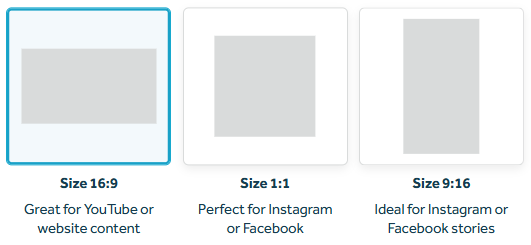
Your empty canvas or pre-made template can be in one of the following aspect ratios: 16:9 (“Great for YouTube or website content”), 1:1 (“Perfect for Instagram or Facebook”), or 9:16 (“Ideal for Instagram or Facebook stories”).
Before you create your own video, I suggest you follow VideoScribe’s tutorial templates, as they do a good job of explaining the platform’s core features.
How does VideoScribe work?
VideoScribe allows you to create a video through the following building blocks:
- Scenes
- Cameras
- Audio tracks
- Text
- Images
- Shapes
You can use scenes and cameras
While scenes and cameras sound similar, they serve different roles in organizing your content and controlling what the viewer sees.
Think of scenes as high-level chapters that break your video into organized, manageable sections. Your video must be made up of at least one scene, but you can add multiple of them to your project. Each scene has its own settings where you can choose a background color and select an entrance transition (“none”, “fade”, “slide in”, “bounce”, “erase”, or “drag on”) to control how the scene animates into view.
If a scene acts as a large, static canvas, cameras are the tools you use to move around that space. They allow you to pan, zoom, and focus on certain elements. Every scene must have at least one camera, but you are free to add multiple of them. You can tweak the following settings for a given camera: its movement type (“none”, “ease out”, or “linear”), the duration of the movement, and the pause time before moving to the next animation.
You can animate your text, images, and shapes
You can customize your images, text, and shapes using three distinct, optional animation stages. The entrance animation is the standard go-to for most elements, but layering on emphasis and exit animations can add some extra flair to your video. Here is a breakdown of your options:
-
Entrance animation: This determines how an element first appears. You can have it “drawn” onto the canvas by a hand or pen, or opt for a “reveal” or “fade in”. If you choose a drawing animation, you can customize the hand (choosing from various skin tones and drawing utensils) or the pen (selecting items like crayons or highlighters) to match your style. Alternatively, you can set your images to “move” or “bounce” into the frame, or have them “dragged in” from a given direction.
-
Emphasis animation: Once the element is on the canvas, you can keep the viewer engaged with a “pulse”, “spin”, “shake”, or “bounce”.
-
Exit animation: When it’s time for an element to leave the screen, you can have it “fade out”, “move out”, or “disappear”. There is also a “slingshot” effect and a literal “erase” animation where a customizable hand clears the element away.
Regardless of the animation chosen, you have control over the duration of the movement and the pause time before the next element begins its animation. Here are a few examples of the animations in action:
You are given a library of ready-to-use images
VideoScribe describes images as “the main focus of your projects, visually illustrating your topic to your audience.” While you can upload your own files, the platform comes with its own catalog of icons and images to speed up the process. The volume of content you can access depends on your plan:
- The Trial and Lite plans include approximately 9,000 assets.
- The Core and Max plans grant access to a much larger library exceeding five million assets.
Nearly all the images share a consistent “clipart” aesthetic. I can’t say I’m a huge fan; scrolling through the library felt like a trip back to the days of Windows 95 and Word 2000 (oof, that reference felt dated). However, your views might differ and you might find this style appropriate for your needs.

Some of the images allow for deeper customization where colors can easily be changed. Here’s an example:

You can modify and transform images
Once an image is placed onto the canvas, VideoScribe provides several transformation tools. You can easily resize it, crop it, and adjust its opacity. Additionally, the platform allows you to flip it both vertically and horizontally.

You can generate images with AI
VideoScribe includes an AI tool for generating custom images (meaning you simply type a description of what you want and the software instantly creates it for you), though even these new graphics stay true to the platform’s “clipart” aesthetic. The Trial plan allows for 5 AI-generated images; the Lite plan, 20 per month; the Core plan, 50 per month; the Max plan, 100 per month.

You can add audio tracks
Sound design is crucial for keeping your viewers engaged, and VideoScribe gives you a few tools to tackle it. While they are intentionally simple, you still have basic control over your sound design. You can split tracks to cut out mistakes or awkward pauses, adjust volume levels to balance your background music with your voiceover, and apply a fade-out effect.
For your background music, you can browse VideoScribe’s collection of over 200 royalty-free tracks or upload your own audio files. While the built-in library is perfectly functional, the tracks do sound somewhat generic. Here are a few samples:
If you need a voiceover, you have three options: you can use your microphone to record your script directly within the application, you can import pre-recorded voice files from your computer, or you can have your script read by one of VideoScribe’s AI voices.
The AI voices require a Core or Max subscription, and they are limited to 75 and 150 minutes of generated audio per month, respectively. You can choose among different nationalities, languages, and accents. Here are a few samples – I find them convincing and would use them for my own videos:
You can arrange your building blocks into a timeline
Every element you add to your video is arranged in a timeline at the bottom of the screen to dictate the order of appearance. VideoScribe offers two views depending on your preference: simple and advanced. In my experience, the difference is mostly about presentation rather than raw power.
The upside to this simplicity is that the timeline is easy to handle. You definitely won’t find yourself lost in a sea of confusing animation settings and endless layers. That being said, if you have ever used professional software like Adobe Premiere, you will need to keep your expectations in check: the timeline is quite rigid. For instance, you cannot have two images drawn at the same time, as elements are processed one after another.
You can download your project as an MP4 or 15-second GIF file
Once your project is finished, you can download it as a 1080p MP4 video or an animated GIF. Note that GIF exports are limited to only the first 15 seconds of your animation. As with many features in VideoScribe, your subscription tier determines your output options:
- Trial plan: You are restricted to 3 downloads and a maximum video length of 5 minutes. The videos are watermarked.
- Lite plan: You are restricted to 5 downloads per month and a maximum video length of 5 minutes.
- Core plan: This tier offers 30 downloads per month and a 10-minute maximum video length.
- Max plan: This tier offers unlimited downloads and allows for videos up to 20 minutes long.
Is VideoScribe simple to use?
Absolutely. After working through the tutorial templates – which do a solid job of explaining VideoScribe’s core features – I jumped straight into a blank canvas for a test run. The learning curve is shallow; it didn’t take long to get the hang of the interface, and the overall experience felt intuitive.
How much does VideoScribe cost?
VideoScribe operates on a subscription-based model with options to pay either monthly or annually. While there are four subscription levels, you will likely need at least the Core tier to access the platform’s flagship features, such as generating AI voiceovers or accessing the full library of five million images and icons.
- The Trial plan is free for 7 days. You don’t have to enter your credit card information.
- The Lite plan is $36 USD per month, or $12.50 USD per month when billed annually.
- The Core plan is $53 USD per month, or $18.75 USD per month when billed annually.
- The Max plan is $67 USD per month, or $23.33 USD per month when billed annually.
If you opt for the annual commitment, the effective monthly rate is very reasonable, even more so if you intend to produce a lot of videos. However, the month-to-month cost is harder to justify unless you intend to produce a high volume of content in a very short timeframe.
Like many software subscriptions, VideoScribe’s plans auto-renew by default, and some users have mentioned being caught off guard because they didn’t receive a heads-up email before the next billing cycle. This can lead to unexpected charges and frustrating arguments with customer service to secure a refund. The risk is especially high with yearly plans, where the long gap between payments makes it easy to forget. I strongly recommend marking your renewal date on your calendar to avoid any surprises.
It is also worth checking if you qualify for a demographic discount. As of this writing, VideoScribe offers a 50% discount for charities and non-profits in the US or the UK and up to a 25% discount for the education sector – covering teachers, students, and academic institutions.
In conclusion: should you use VideoScribe?
Ultimately, VideoScribe is a tool built for speed and accessibility, making it a great fit for individuals and smaller teams who lack animation experience. According to the platform, their core user base consists of marketers, HR and training managers, small businesses, educators, sales professionals, charities, and lawyers. From my own testing and research, that feels like a pretty accurate assessment. If you need to whip up straightforward training materials, internal content, or clear explanations without facing a steep learning curve, VideoScribe is a solid choice.
That ease of use does come with a few trade-offs, though. The platform’s dominant “clipart” aesthetic has a bit of a “kitsch” factor to it. While this style may work wonders in a classroom or during a casual team meeting, it may not do so well if you are trying to produce high-stakes, hyper-polished corporate marketing campaigns. You also have to remember that the software requires a constant Internet connection and cannot function offline.
My final verdict: If your main goal is to explain a concept quickly and clearly, VideoScribe is well worth your time. It gives those of us who aren’t professional animators the ability to prioritize clear communication over complex, flashy animations. Plus, the fact that you can explore the 7-day trial without providing a credit card makes it entirely risk-free to test out for yourself.